Your messaging apps might be draining your phone's battery more than you realize. Notifications, background activity, and location tracking are some of the biggest culprits. Here’s how you can extend your battery life:
- Manage App Permissions: Limit location access to “While Using” and disable unnecessary background activity. Apps with constant location tracking can use up to 39% more battery per hour.
- Turn Off Auto-Downloads: Prevent messaging apps from automatically downloading media, especially on mobile data. This reduces CPU wake cycles and saves both battery and data.
- Adjust Notifications: Group notifications, disable vibration alerts, and turn off preview bubbles. Vibration alone can use 10x more power than sound notifications.
- Use Dark Mode and Lower Screen Brightness: On OLED screens, dark mode can save up to 42% of display power. Reducing brightness to 50% can extend screen-on time by 30–40%.
- Enable Power-Saving Features: Use Low Power Mode or Battery Saver to limit background processes. These features can extend battery life by up to 22%.
- Monitor Battery Usage: Use built-in tools to identify apps with high background activity. Disable background refresh or restrict these apps as needed.
How to STOP Apps Draining Battery in Background on Motorola Phone (Android Tutorial)
sbb-itb-d1a6c90
Adjust App Permissions and Background Activity
Managing how apps operate in the background can go a long way in saving battery life. Background tasks like location tracking, data syncing, and server polling keep your phone's radio and processor active, preventing it from entering sleep mode. Apps with "always-on" location permissions, for example, can use 21–39% more battery per hour compared to apps set to "while using" permissions. These tweaks build on earlier tips about reducing battery drain caused by messaging apps. Up next: fine-tuning notifications and screen settings for even more efficiency.
Turn Off Location Services
Using high-accuracy location settings significantly increases battery usage. For instance, enabling high-accuracy GPS can raise the GPS duty cycle by 4.3×, as multiple hardware modules are activated simultaneously. Features like Telegram's Live Location are particularly demanding, consuming 28% of battery life in just 90 minutes - about four times what a 60-minute voice call would require.
To minimize this impact, adjust app settings to limit location access. Change permissions from "Always Allow" to "While Using the App" for messaging apps. If your phone supports it, switch to "Approximate" instead of "Precise" location, which relies on Wi-Fi and cell tower triangulation rather than GPS. This adjustment can reduce wake-ups by as much as 89%. When sharing your location, opt for a 15-minute timer instead of indefinite live sharing, and use static location pins whenever possible. For example, during an event with 200 participants, organizers encouraged limiting live location sharing to 15-minute intervals, which reduced average battery drain from 42% to 11% over an 8-hour period.
Restrict Background Activity
Controlling background activity is another effective way to preserve battery life, especially during heavy messaging use. Background processes allow apps to refresh content, sync data, and check for notifications, but they also keep your phone awake unnecessarily. Unrestricted background activity can increase overnight battery drain by 22–40%.
On Android devices, go to Settings > Apps > [App Name] > Battery and select "Optimized" for most apps. However, for key messaging apps like WhatsApp, Signal, or Google Messages, set them to "Unrestricted" to avoid notification delays. Misconfigured settings are responsible for 73% of missed SMS reports on Android 13+ devices. For iOS users, head to Settings > General > Background App Refresh, disable it globally, and then enable it only for essential apps. This can cut background network usage by 64%.
"Modern Android (12+) uses App Standby Buckets and JobScheduler to prioritize tasks - but only when core messaging services are explicitly exempted from battery restrictions." – Leo, Smart Home Systems Engineer
Turn On Battery Optimization
Battery optimization strikes a balance between connectivity and energy efficiency, potentially extending your battery's lifespan by up to 22% over a year. The key is to aggressively optimize non-essential apps while leaving critical messaging services unrestricted.
Enable "Adaptive Battery" in your system settings to let your phone learn your usage habits and automatically limit rarely used apps. On iOS, set Background App Refresh to "Wi-Fi" instead of "Wi-Fi & Cellular Data" to reduce power usage when you're away from a wireless network. For example, a security team configured their Android devices to use "Approximate location" and enforced a 30-second update interval. This allowed their 5,000 mAh phones to last through two 14-hour shifts on a single charge. These adjustments not only conserve battery but also prepare your device for further tweaks in notification and screen settings.
Manage Notifications and Screen Usage
Notifications and screen activity are some of the biggest culprits when it comes to draining your phone's battery. Every time a notification pops up, it kicks off a chain reaction - waking the processor, running background services, checking caches, and sometimes even pre-loading media via network calls. Meanwhile, your screen is often the largest single power consumer, responsible for 30–50% of your device's total energy use. By tweaking how notifications and screen settings are handled, you can noticeably extend your battery's life during messaging sessions. Let’s break it down.
Adjust Notification Settings
Did you know that every push notification can use up about 0.1–0.3% of your battery? If you’re getting 50 notifications a day, that adds up to roughly 15% of your battery capacity. The bulk of this energy drain comes from background syncing and the "wake locks" needed to deliver the alert. Grouping notifications into summaries can help - this reduces device wakeups by about 20% and cuts energy use by up to 23%.
Here’s how you can take control:
- On iOS, use the "Scheduled Summary" feature (found in Settings > Notifications) to group non-urgent alerts.
- On Android, configure "Notification Channels" to prioritize important updates.
- Turn off notification badges, preview bubbles, and haptic feedback to further cut down on standby energy loss.
A bug in Google Messages once caused excessive background syncing, but disabling RCS fixed the issue. For example, on devices like the Pixel 7 and Samsung Galaxy S23, idle battery drain dropped from 3.6% per hour to just 0.9% per hour.
While notifications are one part of the equation, screen settings are just as important for saving energy.
Use Dark Mode and Adjust Screen Brightness
If your phone has an OLED or AMOLED screen, switching to dark mode can make a big difference. These screens turn off black pixels entirely, reducing power consumption by as much as 42% for messaging apps. However, if you’re using an LCD screen, the savings are minimal - less than 5% - and in some cases, dark mode might even use 3–7% more power because the backlight stays on.
Adjusting screen brightness is another quick win. For example:
- At maximum brightness, an OLED screen might consume about 3.2 W, but at 20% brightness, it only uses 0.41 W - a nearly eightfold drop.
- Lowering brightness from 100% to 50% can extend screen-on time by 30–40%, and dropping it further to 25% can nearly double that time.
Enable adaptive brightness so your phone adjusts to ambient light automatically, avoiding unnecessary high brightness indoors. Additionally, setting a shorter screen timeout (15–30 seconds) can save 5–10% of daily battery usage, and on OLED panels, it can reduce idle display power consumption by about 41%.
Another tip? Disable the Always-On Display feature. While convenient, it can drain your battery up to four times faster than a completely off screen, saving you an extra 5–12% of daily power. Stick to your phone’s native dark mode instead of third-party browser extensions, which can increase GPU demand and use 8–12% more energy.
Close Background Apps
You might think force-closing apps from the recent apps screen saves battery, but it’s actually counterproductive. Modern operating systems like iOS and Android are designed to manage memory efficiently. For example, iOS suspends apps after about 5 seconds of inactivity, and Android only shuts them down when memory is tight.
As Enitha from Apps Thunder explains:
"On modern iOS and Android, force-closing apps from the recent apps screen usually makes no difference or slightly increases battery use, because the next time you open the app it has to reload from scratch."
The real issue isn’t how many apps are open - it’s poorly managed background activity. Instead of manually closing apps, use system settings to limit background refresh for apps that don’t need constant updates. On iOS, you can disable Background App Refresh for less important apps (go to Settings > General > Background App Refresh). On Android, set non-essential apps to "Optimized" in Battery Optimization settings. This can reduce average background CPU wake time by up to 68%. Only force-close apps that are frozen or unresponsive.
Optimize Network and Data Usage
Wireless radios, like Wi-Fi and cellular, are notorious for draining battery life, especially when messaging apps constantly ping the network for updates. Every data transfer pushes the radio to full power, keeping it active for several seconds, which quickly eats away at your battery. For instance, a single one-second data transfer repeated just three times per minute can keep your radio almost constantly active. To reduce this power drain, tweak your network settings with the tips below.
Use Wi-Fi Instead of Mobile Data
Whenever possible, connect to Wi-Fi instead of relying on mobile data. Wi-Fi is far more energy-efficient because it eliminates the need for your device to continuously search for cell towers - a process that consumes a lot of power. Once connected, Wi-Fi is more stable and requires less energy to maintain.
Turn On Data Saver Modes
Activate Data Saver by navigating to Settings > Network & Internet. This feature limits background data usage, but you can grant Unrestricted Data Access to essential messaging apps like WhatsApp or Telegram to ensure they still deliver real-time notifications. Cutting background activity, such as CPU, network, and location polling, can reduce power consumption by up to 68%. After enabling Data Saver, restart your device to allow Android to reassign its "standby bucket" settings.
Compress Media and Turn Off Auto-Downloads
Prevent unnecessary radio and CPU activity by disabling auto-downloads and compressing media. Each time your messaging app automatically downloads photos, videos, or voice messages, it activates the radio and keeps the CPU busy processing and saving the files. This constant activity stops your device's System-on-Chip (SoC) from entering deeper sleep states. Interestingly, 68% of mobile users consider battery life a key factor when deciding whether to keep or uninstall an app.
To save battery, configure your messaging apps to download media only while connected to Wi-Fi. For WhatsApp, go to Settings > Storage and Data > When Using Mobile Data, and uncheck all media types (Photos, Audio, Videos, Documents). Similarly, in apps like Signal, limit auto-downloads to Wi-Fi connections only.
Use Device Power-Saving Features
Your device comes with built-in power-saving tools that can help extend battery life, especially during heavy use. These features work by reducing background activity, dimming the screen, and limiting network usage. Turning them on can be particularly helpful when you're away from a charger and using your device for tasks like messaging.
Turn On Low Power Mode
If you're using an iPhone, enabling Low Power Mode is simple. You can go to Settings > Battery (on iPhone 15 and later, tap "Power Mode" first), swipe down to open the Control Center and tap the battery icon, or just ask Siri to activate it. On Android, Pixel devices allow you to swipe down from the top and tap "Battery Saver", or you can find it under Settings > Battery > Battery Saver. For Samsung users, navigate to Settings > Battery and toggle on "Power Saving."
Keep in mind that Low Power Mode on iOS disables background app refresh, while on Pixel devices, it pauses most apps unless they’re marked as essential. Pixel users can also enable "Extreme Battery Saver", which pauses nearly all apps unless you whitelist them under Settings > Battery > Battery Saver > Extreme Battery Saver > Essential apps.
One thing to note: Low Power Mode on iPhones turns off automatically once the battery reaches 80% charge. On Pixel devices, Battery Saver can be set to deactivate at 90% charge. Additionally, if your device has a ProMotion display, the refresh rate will drop to 60Hz when this mode is active.
Once you've activated power-saving mode, you can tweak your notification settings to further conserve energy.
Configure Notifications for Power-Saving Modes
To save power while still receiving important alerts, adjust your notification settings. On Android, add key messaging contacts to the "Allow Exceptions" list under Do Not Disturb. For iOS users, you can set up a Focus profile that allows notifications from essential contacts only.
Switching from vibration alerts to silent banners or sound notifications can also help conserve battery, as vibration uses 2.1–10 times more power than audio alerts. Additionally, enabling "Adaptive Battery" on Android or "Adaptive Power" on iOS 15 Pro and later allows the system to prioritize your most-used apps, reducing background battery drain by up to 41%.
These adjustments, combined with power-saving modes, can significantly cut down on unnecessary energy usage.
Check Battery Usage with Built-In Tools
Both iOS and Android offer battery monitoring tools to help you identify which apps are draining the most power. On iPhone, you can check this by going to Settings > Battery, where you'll find a Daily Usage graph and an option to view an eight-day breakdown. Android users can find similar information under Settings > Battery > Battery usage, with the ability to view usage by app.
These tools separate "On screen" activity from background activity, making it easy to spot apps that consume power even when you're not actively using them. If a messaging app shows high background activity, you can disable background refresh on iOS or set the app to "Optimized" or "Restricted" on Android under Settings > Apps > App battery usage. On iPhones, the battery settings can also flag apps whose notifications frequently wake your device, providing a direct link to adjust those notification settings.
Samsung Galaxy users can take advantage of the "Battery and device care" feature found in Settings, which helps identify power-hungry apps and automatically closes background processes.
These tools and adjustments can make a big difference in keeping your device powered longer during heavy use.
Monitor and Test Battery Performance
After putting battery-saving strategies into action, it's important to keep an eye on your device's performance. This helps identify any lingering battery drains and fine-tune settings for better efficiency.
Review App-Specific Battery Usage
Checking how individual apps affect your battery is a great starting point. On Android, head to Settings > Battery > Battery usage and use the "View by app" dropdown. If you're using a Samsung device, go to Settings > Battery > View details. For iPhone users, navigate to Settings > Battery, then scroll to Battery Usage by App. Tap "Show Activity" to see a breakdown of Screen On time versus Background activity.
Apps with high background activity but minimal screen time can be a red flag. These apps, such as WhatsApp, Facebook Messenger, and Telegram, might be draining your battery with constant background refreshing, notifications, or permissions. If you notice this, consider limiting their background activity. On Android, you can tap the app in the battery list and select Restricted (though this might delay notifications). On iPhone, disable Background App Refresh for specific apps under Settings > General > Background App Refresh.
"The Show Activity menu is the most useful one here, as it tells you how many minutes an app has been working on your iPhone. What you'll want to pay attention to here is Background activity." - Chris Smith, BGR
These steps can help you pinpoint problem apps and adjust settings to improve battery life.
Test Settings Under Normal Use
Before making changes, record your device's baseline performance metrics like Screen-On Time, Total Uptime, and CPU wake-ups. For reference, aim for ≤8 CPU wake-ups per hour on Android and ≤5 per hour on iOS. Use tools like iOS Screen Time or Android Digital Wellbeing to track these stats. After implementing changes, monitor your device for at least a week to see if there's any improvement. A good benchmark is a battery-to-usage ratio of at least 1.8:1 (e.g., 10.2 hours total uptime for 5.7 hours of screen-on usage).
If you notice unusual battery usage spikes that don’t align with your actual habits, it could signal a bug or poor optimization, especially after a software update. Regular weekly reviews of battery usage can help you identify and reduce high-drain behaviors.
Keep in mind that force-closing apps can actually increase battery drain. Reloading an app from scratch uses more power - 120 to 180 milliseconds of extra CPU activity - compared to resuming it from a suspended state.
Maintain Battery Health
In addition to daily optimizations, preserving your battery's long-term health is essential. Lithium-ion batteries last longer when kept between 20% and 80% charge. Letting the battery drop below 20% or charging it to 100% too often can shorten its lifespan. After about 500 full charge cycles (roughly 18 to 24 months), most batteries retain only 80% to 85% of their original capacity.
To check your battery's health on an iPhone, go to Settings > Battery > Battery Health & Charging and look for "Maximum Capacity". On Android, Samsung users can use the Samsung Members app, while other Android devices may allow you to dial ##4636## to access hidden battery information menus. A battery is generally considered ready for replacement when its maximum capacity drops below 80%.
Enable features like Optimized Battery Charging on iOS or Adaptive Charging on Android to reduce wear. These features temporarily cap the charge at 80% until the device predicts you'll need it. Also, avoid exposing your phone to extreme heat - like leaving it in direct sunlight or a hot car - as heat is a major cause of battery wear. If you're using a thick case, consider removing it during heavy use, such as video calls, as this can lower peak temperatures by up to 11°F.
Resource Optimization Comparison Table
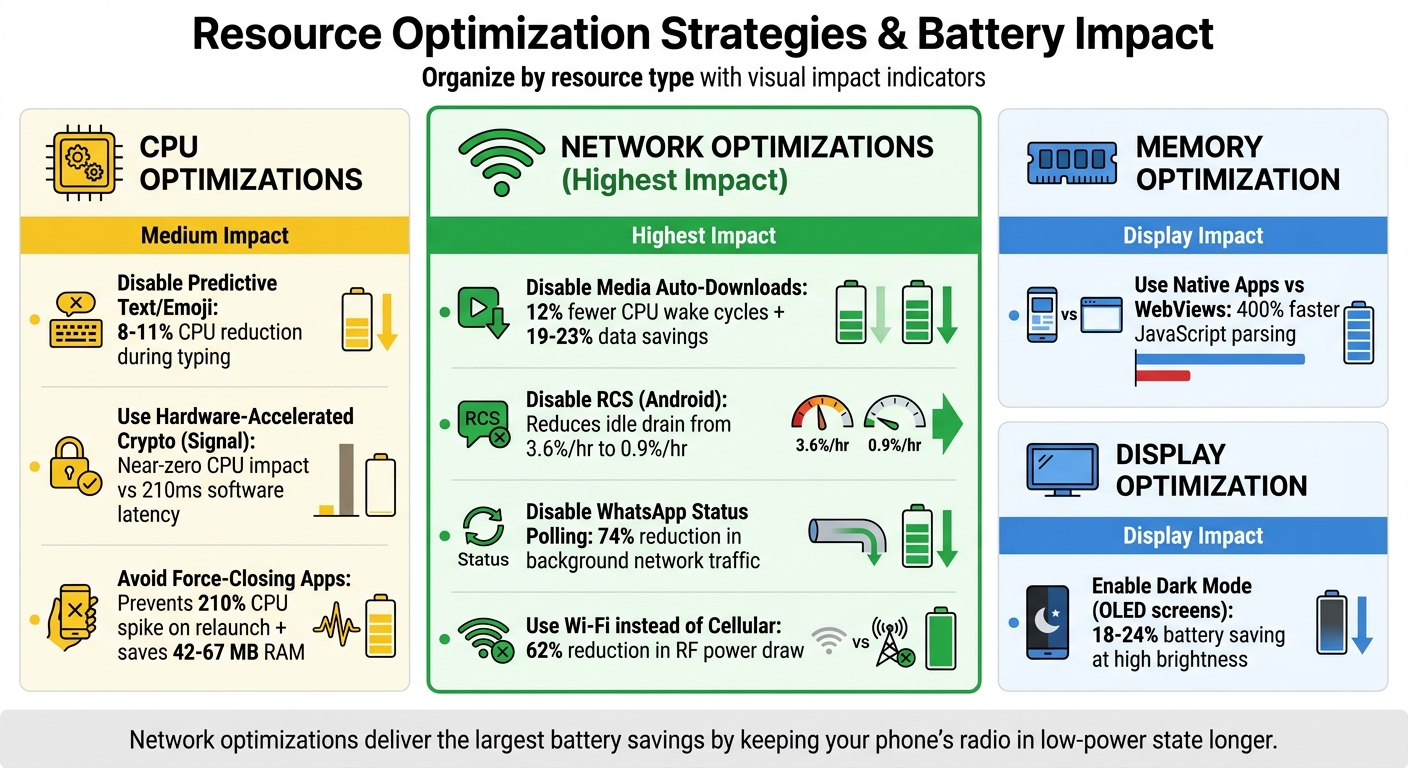
Battery Optimization Strategies for Messaging Apps: Impact Comparison
Following earlier battery-saving suggestions, this table provides a clear breakdown of strategies tailored to specific resources. Messaging apps often drain the battery through heavy use of the CPU, network, and memory. By applying targeted strategies, you can reduce this drain and stretch your device’s battery life.
For instance, turning off predictive text can save 8–11% of CPU during typing, while disabling media auto-downloads reduces CPU wake cycles by 12% and conserves 19–23% of cellular data. Network optimizations, in particular, tend to yield the most significant benefits - such as disabling Background App Refresh on iOS, which can extend battery life by 22% over an 8-hour span. Below is a table summarizing these strategies and their measurable impacts.
| Resource Type | Optimization Strategy | Estimated Battery/Resource Impact |
|---|---|---|
| CPU | Disable Predictive Text/Emoji Suggestions | 8–11% CPU reduction during typing |
| CPU | Use Hardware-Accelerated Crypto (e.g., Signal) | Near-zero main CPU impact compared to 210ms software latency |
| CPU | Avoid Force-Closing Apps | Prevents 210% CPU spike on relaunch and saves 42–67 MB RAM per relaunch event |
| Network | Disable Media Auto-Downloads | 12% fewer CPU wake cycles; 19–23% data saving |
| Network | Disable RCS (Android) | Reduces idle drain from 3.6%/hr to 0.9%/hr |
| Network | Disable WhatsApp Status Polling | 74% reduction in background network traffic |
| Network | Use Wi-Fi instead of Cellular (LTE/5G) | 62% reduction in RF power draw |
| Memory | Use Native Apps instead of WebViews | 400% faster JavaScript parsing; less UI "jank" |
| Display | Enable System-Wide Dark Mode (OLED) | 18–24% battery saving at high brightness |
Network-related tweaks often deliver the biggest improvements because your phone’s radio consumes a lot of power each time it wakes up to sync data. Strategies like batching network requests and reducing background syncing can help keep the radio in its low-power state longer, ultimately saving more battery.
Conclusion
Boosting battery life for messaging apps requires a mix of smart app settings, device tweaks, and mindful habits. The strategies outlined here work together seamlessly: limiting background activity ensures apps aren't constantly pinging servers when idle, while turning off high-power features like RCS can reduce idle battery drain from 3.6% per hour to just 0.9% on devices like the Pixel 7 and Galaxy S23. Even your network choices play a role - using Wi‑Fi instead of cellular cuts RF power usage by 62%, and dialing back your screen refresh rate from 120Hz to 60Hz can significantly lower display power consumption during active use.
When it comes to maximizing battery life, focusing on network and display power makes the biggest difference. For example, enabling system-wide Dark Mode on OLED screens can save 30–40% of display power, which can translate into several extra hours of use over the course of a day.
As Mia, a Digital Productivity Coach, wisely explains:
"Efficiency isn't about faster chips or bigger batteries; it's about reducing unnecessary state transitions, redundant I/O operations, and unbounded background computation."
- Mia, Digital Productivity Coach
Beyond day-to-day battery performance, long-term health depends on how you charge your device. Keeping your charge level between 20% and 80% can extend your battery's lifespan from 18 months to 34 months, which is especially valuable for business users managing small business operations and costly corporate devices.
This checklist empowers you to take control of the three main battery drains: background network activity, display power, and notification interruptions. Regularly reviewing app permissions, tweaking connectivity settings, and keeping an eye on battery usage can lead to noticeable improvements. Simple changes, like setting location access to "While Using App" or disabling automatic media downloads, can add up over time - giving you better battery performance and a longer-lasting device.
FAQs
Which settings save the most battery without delaying messages?
To keep your battery lasting longer without missing important messages, make sure background data is enabled for key messaging apps like Google Messages or WhatsApp. You can also turn off features like “Adaptive Battery” and “Battery optimization” specifically for these apps to ensure they work seamlessly.
For Google Messages, disabling RCS chat features and limiting background activity helps cut down on battery usage while still delivering messages instantly. At the same time, restricting background activity for non-essential apps can help you manage overall battery consumption more effectively.
Will restricting background activity delay notifications?
Restricting background activity can lead to delayed notifications, especially for essential apps. To prevent this, selectively disable background app refresh for non-essential apps while keeping it active for messaging apps. Android relies on high-priority channels like Firebase Cloud Messaging (FCM) to deliver real-time alerts, even under certain restrictions. For timely notifications, make sure background activity remains enabled for your messaging apps.
Does dark mode actually save battery on my phone?
Dark mode can help conserve battery life on OLED and AMOLED screens because black pixels require less power, particularly when the screen brightness is high. On the other hand, if your device uses an LCD screen, dark mode doesn’t offer the same benefit - it might even lead to slightly higher power consumption. Whether dark mode saves battery depends largely on your phone's display type and how bright the screen is set.