If I had to cut business Wi-Fi risk fast, I’d do 7 things first: use WPA3 or WPA2-Enterprise, replace shared passwords, split guest and IoT traffic from work devices, lock down access points and routers, turn on firewall logging and wireless threat detection, keep firmware current, and train staff on safe Wi-Fi use.
That’s the short answer.
Why? Because a weak wireless setup can lead to downtime, data loss, and compliance trouble. The article points to one stat that stands out: 61% of small business cyberattacks in 2025 started with weak or misconfigured Wi-Fi. And since a Wi-Fi signal can reach beyond your office walls, a bad setup can give attackers a path in from nearby spaces.
Here’s the full checklist in plain English:
- Use modern encryption: pick WPA3-Enterprise when possible, or WPA2-Enterprise if older gear requires it
- Tighten access: use per-device or per-user login, not one shared Wi-Fi password for everyone
- Split networks: keep Corporate, Guest, and IoT traffic on separate SSIDs/VLANs
- Lock down hardware: change default logins, turn off WPS, UPnP, and remote admin access
- Watch the network: enable firewalls, logs, alerts, and WIDS/WIPS
- Patch on schedule: update APs, routers, controllers, and IoT firmware
- Train employees: teach staff to avoid fake SSIDs, use a VPN off-site, and keep personal devices off the main work SSID
Quick comparison
| Practice | What it does | Main risk it cuts |
|---|---|---|
| Modern encryption | Protects wireless traffic | Eavesdropping and weak login methods |
| Strong access control | Limits who can join | Shared-password abuse and account misuse |
| Network segmentation | Keeps device groups apart | Lateral movement after one device is hit |
| Hardware lockdown | Secures APs and routers | Device tampering and admin takeover |
| Monitoring and alerts | Spots bad activity | Rogue APs, evil twins, and odd traffic |
| Patching and reviews | Closes known flaws | Old firmware and stale settings |
| Employee training | Cuts user mistakes | Fake Wi-Fi joins, bad remote access habits |
My takeaway: business Wi-Fi security is not one setting. It’s a stack of controls that work together. Fix the big gaps first: old protocols, default admin credentials, and guest or IoT devices sitting on the same network as company systems.
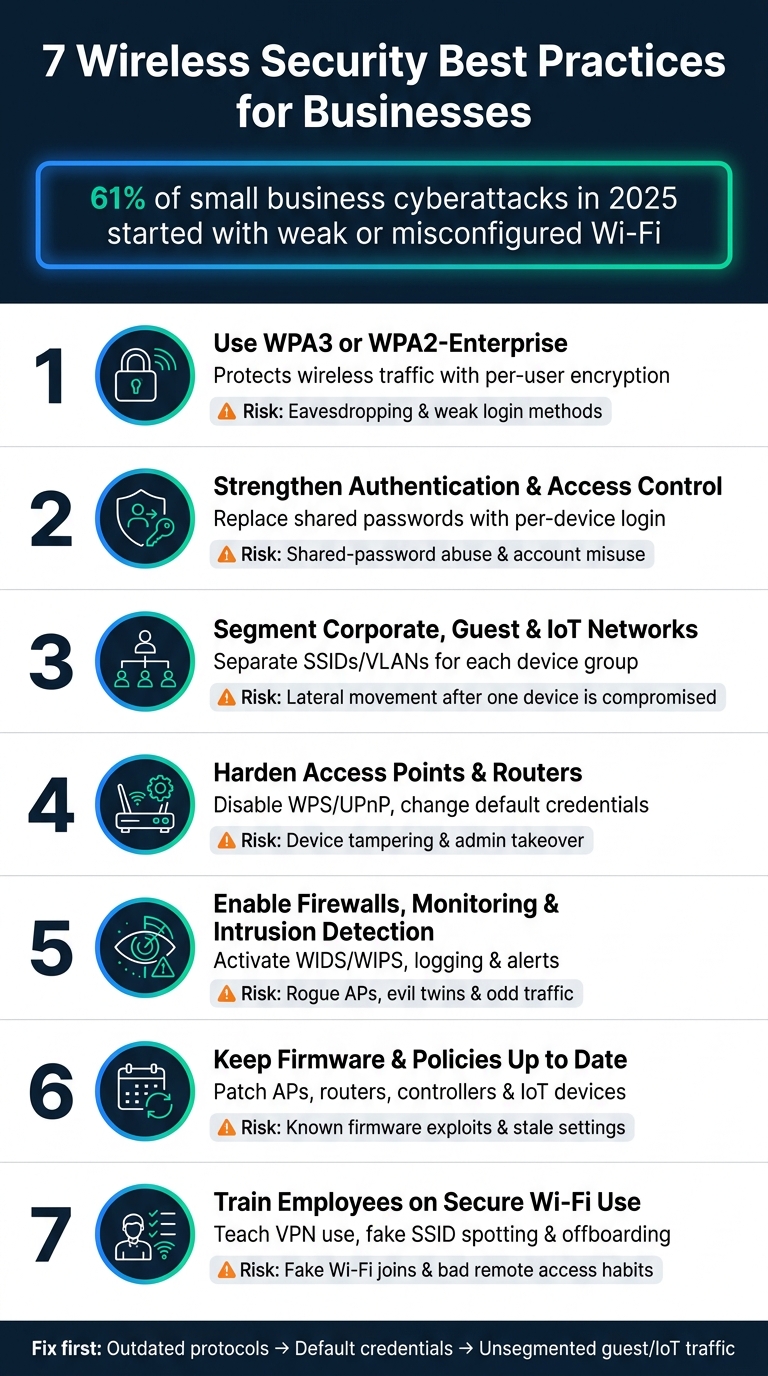
7 Wireless Security Best Practices for Businesses
Why Wireless Security Matters for Businesses
How business Wi-Fi differs from home Wi-Fi
Business Wi-Fi deals with more people, more device types, and more permission levels than a home network. You’re not just connecting a few phones and a laptop. You’re handling employees, contractors, guests, and vendors, and each group needs different levels of access.
The device mix is broader too. It can include laptops, phones, printers, tablets, and even building systems. That makes the job harder fast.
BYOD and IoT devices add access-control risk, especially when they don’t have current firmware or support newer security features. And if an employee plugs in an unauthorized router to fix a dead zone, that creates an unmanaged access point that can bypass your corporate firewall entirely.
At the center of this is what security teams call a "flat" network. That means every device, no matter who owns it or what it does, ends up on the same network segment. That’s a problem. One weak device can open the door for trouble across the rest of the network. This is why wireless security can’t rely on a single fix. It has to work in layers.
What is at stake for U.S. businesses
Business Wi-Fi carries a lot more than internet traffic. It often moves customer records, payment card data, employee HR files, internal financial records, and trade secrets.
If that data is exposed, the damage can spread fast. A breach can lead to legal review, compliance trouble, and day-to-day disruption. Teams may lose access to systems they need. Work can stall. Customers may start asking hard questions.
Recovery costs, downtime, and legal fees can add up fast. The longer-term hit can be even worse, especially for small businesses. For many companies, the hardest part isn’t just fixing the issue. It’s dealing with the fallout after the fact. That’s why the controls below aren’t optional.
Why wireless security needs a layered approach
Wireless security needs more than one line of defense. You need encryption, access control, segmentation, patching, and monitoring working together. One control helps, but it won’t cover every gap.
Think of it like locking a front door but leaving the windows open. Encryption helps protect traffic. Access control limits who gets in. Segmentation keeps devices apart. Patching closes known holes. Monitoring helps you spot trouble before it spreads.
The seven practices below show how to build those layers in order. The first layer starts with encryption and enterprise authentication.
sbb-itb-d1a6c90
CORPORATE WI-FI SECURITY: Wireless Network Best Practices for Businesses
1. Use WPA3 or WPA2-Enterprise With Strong Encryption
Start with the wireless standard that protects both traffic and identity, using the best business administration tools to manage your network infrastructure.
Wireless encryption is the bedrock of business Wi-Fi security. WPA3-Enterprise is the recommended standard for business Wi-Fi. It verifies each user one by one through 802.1X and RADIUS, which means no shared passwords floating around. If one account gets compromised, it doesn't hand over access to every user or device on the network. That matters because this layer protects traffic before access rules and network segmentation do their job.
For most businesses, WPA3-Enterprise should be the default.
WPA2-Enterprise is still a good fallback if your hardware doesn't support WPA3 yet. It uses the same per-user credential model, so it's much safer than any shared-password setup. The catch is that it doesn't include forward secrecy, which means captured traffic has less protection if credentials are compromised later.
Retire WPA2-Personal, WEP, and WPA right away. These older protocols have known weaknesses, and attackers still go after them.
For managed devices, use EAP-TLS and automate certificate issuance and renewal through SCEP or your MDM. It also helps to connect Wi-Fi access to your identity provider, so when an employee leaves, their access is revoked automatically, often within minutes.
Next, lock down who can connect and what each device can reach.
| Feature | WPA3-Enterprise | WPA2-Enterprise |
|---|---|---|
| Authentication | Individual (802.1X/RADIUS) | Individual (802.1X/RADIUS) |
| Encryption | Up to 192-bit (CNSA) or 128-bit | 128-bit AES |
| Forward Secrecy | Yes | No |
| Revocation | Per-user revocation | Per-user revocation |
| Best For | Mid-to-large businesses | Legacy hardware support |
2. Strengthen Authentication, Passwords, and Access Control
Encryption protects your traffic, but authentication decides who gets on the network at all. After encryption is set, the next problem is access.
The biggest win usually comes from replacing shared passwords with per-device authentication. Use EAP-TLS for managed devices and iPSK for gear that doesn't support it. For devices that can't use 802.1X - like printers, cameras, and some contractor devices - iPSK gives each device its own key. That way, if you need to revoke one device, you don't have to reset access for everyone else. Give unsupported devices separate keys before you place them on their own network.
Admin access needs its own controls. Change default credentials, require 16-character unique passwords, and limit management access to a management VLAN or approved source IPs. Disable WPS and UPnP. For admin logins and other high-risk access paths, require multi-factor authentication so a stolen password alone can't get someone in.
These steps also help with PCI DSS 4.0 and ISO 27001:2022 wireless requirements. Next, isolate printers, cameras, and other non-802.1X devices from employee traffic.
3. Segment Corporate, Guest, and IoT Wireless Networks
Segmentation limits how far a hacked device can move through your network. Put simply, it helps keep one bad connection from turning into a much bigger mess.
The basic setup is straightforward: map each SSID to its own VLAN, then apply firewall rules at the gateway so traffic can't move across segments. A common approach uses three SSIDs:
- Corporate for company-managed employee devices that need full internal access
- Guest for visitors who should get internet-only access
- IoT for cameras, printers, and sensors that should connect only to the cloud services they need
If your business takes card payments, add a separate POS VLAN so payment terminals stay isolated.
A couple of settings matter just as much as VLAN mapping. Turn on client isolation for Guest and IoT SSIDs so devices on those networks can't talk directly to each other. Then set Guest bandwidth caps at around 10–20 Mbps to keep visitor traffic from eating into business use.
Also, don't go overboard with SSIDs. More isn't better here. Keep the total SSID count to 5–6 or fewer to cut beacon overhead. On top of that, audit SSIDs and connected devices every quarter, and rotate IoT or Guest keys after a leak or a staff change.
These boundaries only work if your access points and routers are locked down the right way.
4. Harden Access Points, Routers, and Physical Network Security
Once segmentation is in place, the next job is to lock down the gear that enforces it. Access points and routers matter a lot here. If someone can reach or tamper with either one, they can wipe out the other controls you’ve already set up.
Start with the basics. Replace default credentials. Turn off WPS, UPnP, and remote management. Use SSH and HTTPS instead of Telnet and HTTP. Keep admin access limited to a dedicated management VLAN or a small set of trusted IP ranges. At the router level, use DNS filtering to block known phishing and malware domains.
Physical security matters too. Mount APs high on ceilings or walls so they’re harder to reach. Keep routers and controllers in locked rooms. Lower transmit power so your Wi-Fi signal doesn’t drift into nearby offices or parking lots. At the switch, set up sticky MAC port security on ports tied to your APs. That helps stop someone from unplugging a valid AP and plugging an unauthorized device into the LAN.
High-priority hardening actions:
| Hardening Action | Risk Reduced | Priority |
|---|---|---|
| Disable WPS, UPnP, remote management | Unauthorized access and exposed services | High |
| Sticky MAC port security | Rogue AP injection and hardware swapping | High |
| Locked network closets | Unauthorized LAN access and factory resets | High |
| Ceiling/high-wall AP mounting | Physical tampering and cable disconnection | Medium |
| Lower transmit power | Signal bleed and external reconnaissance | Medium |
| Disable unused Ethernet jacks | Unauthorized physical bridging to the network | Medium |
Patch AP and router firmware within 30 days. Back up configurations on a regular schedule. Audit wireless security once a year. And if your office layout changes, run an RF site survey so your coverage and exposure still make sense.
With the hardware locked down, the next step is to watch for misuse and intrusion.
5. Enable Firewalls, Wi-Fi Monitoring, and Intrusion Detection
Once you've locked down access, the next job is visibility. Firewalls, monitoring tools, and intrusion detection work together to show you what's happening on your network as it happens.
Start with your router firewall. Turn on the built-in firewall and set it to medium or high so it blocks unsolicited inbound connections. Enable firewall logging too, and make sure unsolicited inbound traffic is blocked. If your hardware supports threat intelligence feeds, block known malicious IPs at the same time.
Over 61% of small business cyberattacks in 2025 began with an unsecured or misconfigured Wi-Fi network. A properly configured firewall is one of the fastest ways to cut that risk.
Beyond the firewall, Wireless Intrusion Detection Systems (WIDS) act as the wireless side of that defense. WIDS can spot rogue access points, while WIPS (Wireless Intrusion Prevention Systems) can disconnect clients from them. These tools can detect "evil twin" access points - fake APs that copy your company's SSID to intercept traffic - and flag unauthorized hardware plugged into the network. That said, auto-containment should only be turned on after a legal and policy review, since it can disrupt neighboring networks.
Active monitoring covers the rest. Set alerts for unrecognized devices, repeated authentication failures, and sudden bandwidth spikes. Review connected devices weekly and firewall logs monthly. If you have a larger team, send wireless logs into a SIEM so you can connect Wi-Fi alerts with VPN or email login failures. Those alerts can also help you decide what to patch first and which policies need work.
| Tool/Feature | Primary Risk Reduced | Implementation Priority |
|---|---|---|
| Router Firewall | Unsolicited inbound attacks | Critical (Immediate) |
| Disabling WPS/UPnP | Automated brute-force & port tunneling | Critical (Immediate) |
| WIDS (Rogue Detection) | Evil twins & unapproved devices | High (This Month) |
| Log Review & Alerting | Brute-force attacks & unrecognized devices | High (Ongoing) |
| Client Visibility Dashboard | Unauthorized device access | High (Weekly) |
This isn't a set-it-and-forget-it task. Monitoring needs steady attention. IT or security operations teams should handle day-to-day monitoring and alert triage, while network administrators manage firmware patches and adjust alert thresholds so the team doesn't get buried in noise. Put a response playbook in place before anything goes wrong - who checks a rogue AP alert, who signs off on containment, and who records the outcome.
6. Keep Firmware, Devices, and Wireless Policies Up to Date
Monitoring helps you spot trouble. Updates are what shut the door.
Old firmware is one of the main ways attackers get in, which makes controller and management updates basic security work, not a nice-to-have. Before each update, review vendor advisories. Then deploy changes in stages instead of pushing everything at once. If you use cloud-managed hardware, it makes sense to turn on automated firmware updates. If that option doesn’t exist, put update checks on a fixed schedule.
And don’t stop at the wireless controller. Patch the controller, banking and admin tools, and IoT devices as well. Those systems often lag behind and can become the weak link.
Once patching is done, move to access hygiene. Rotate shared keys on a set schedule and after staffing changes. Also review exceptions and inherited settings before they quietly turn into the new normal.
Wrap up each update cycle by making sure the live configuration still lines up with policy. Run a yearly wireless audit to confirm firmware, SSIDs, encryption, and access rules are still set the way they should be. Testing should happen once a year and again after major changes.
| Maintenance Task | Recommended Frequency | Priority |
|---|---|---|
| Security patches | Promptly upon release | Critical |
| Firmware updates | Scheduled / staged rollout | High |
| PSK rotation | Multiple times per year | High |
| Wireless audit | Annually | Medium-High |
| Penetration testing | Annually or after major changes | High |
| Configuration backups | Before every change | Low (Operational) |
7. Train Employees on Secure Wi-Fi Use and Remote Access
Technical controls matter. But at the end of the day, employees still decide what connects to the network.
Patches and updates can close system gaps. They can't stop someone from joining the wrong Wi-Fi network, typing credentials into a fake captive portal, or putting a personal device on the main business SSID. That's why user behavior is the last line of wireless defense. In many cases, staff habits matter just as much as router settings.
Employees should know how to spot fake SSIDs, suspicious login pages, and phishing attempts that ask for network credentials. Those are common traps, and they work because people are busy.
Two rules do a lot of heavy lifting:
- Require a business-grade VPN any time employees connect outside the office.
- Keep personal phones and tablets on the guest network, not the corporate one, as part of your BYOD policy best practices.
It also helps to turn off auto-connect for unknown or public networks. After using public Wi-Fi, employees should forget the SSID so their devices don't reconnect later to an Evil Twin hotspot with the same name.
Training works better when it's short and specific. Brief, 30-minute refreshers and simulated rogue-SSID exercises help the lesson stick.
Offboarding needs the same level of attention. If someone leaves the company or a device is lost, revoke Wi-Fi access and rotate shared credentials that same day. That keeps former users and missing devices from lingering on the network.
These habits back up the encryption, segmentation, and monitoring controls already in place.
| Employee Action | Risk Level | Recommended Control |
|---|---|---|
| Using public Wi-Fi without a VPN | Critical | Mandatory VPN policy |
| Personal device on corporate network | High | BYOD restricted to guest SSID |
| Auto-connecting to unknown SSIDs | High | Disable auto-join; manual SSID entry |
| Sharing Wi-Fi credentials | High | Written WLAN usage policy |
| No offboarding credential rotation | High | Same-day access revocation protocol |
Security Comparison Tables
If you already know the seven practices, these tables help you compare options fast and find weak spots without digging through every setting.
Wi-Fi security protocol comparison
Start with protocol choice. Encryption sets the baseline for everything else.
This table makes it easy to spot old protocols and the risk that comes with shared passwords.
| Protocol | Encryption Strength | Best Fit | Key Risks |
|---|---|---|---|
| Open | None | Unsuitable | No encryption; traffic visible to anyone nearby |
| WEP | Very weak (RC4) | Obsolete | Static keys cracked in minutes |
| WPA | Weak (TKIP) | Legacy only | Outdated cipher; multiple known exploits |
| WPA2-Personal | Strong (AES-CCMP) | Limited; shared password risk | Shared password vulnerable to dictionary attacks |
| WPA2-Enterprise | Strong (AES-CCMP) | High | Requires RADIUS; risk if PEAP is misconfigured |
| WPA3-Enterprise | Highest (up to 192-bit) | Highest | Requires modern hardware and client support |
Authentication method comparison
Next, look at how users and devices prove who they are on the network.
This is where a lot of teams run into a simple problem: a shared password is easy to set up, but a pain to control once many people and devices use it. If one person leaves or one device is lost, rotating that password can become a mess.
Use this table to compare identity methods and how hard it is to cut off access when needed.
| Method | Security Level | Admin Effort | Best Fit |
|---|---|---|---|
| Shared Password (PSK) | Low | Low | Poor; no individual accountability; hard to revoke |
| Per-User Credentials (802.1X) | High | Medium | Good; ties access to directory (Active Directory/Okta) |
| Certificate-Based (EAP-TLS) | Highest | High (lower if automated) | Best; passwordless and phishing-proof |
| iPSK | Medium | Low | Best for IoT, contractors, and headless devices |
SSID segmentation comparison
Then compare how each network type limits lateral movement.
Separate SSIDs give you a clean way to keep users and devices in the right lane. Employees may need internal access. Guests usually need internet only. IoT devices often need access to just a few systems and nothing more.
Use separate SSIDs to limit lateral movement and isolate guest and IoT traffic.
| Network Type | Allowed Users | Network Access | Isolation | Controls |
|---|---|---|---|---|
| Corporate | Employees | Full internal resources | Low (Internal Trust) | WPA3-Enterprise, EAP-TLS, 802.1X, MFA |
| Guest | Visitors | Internet only | High | Captive portal, client isolation, bandwidth limits |
| IoT | Headless devices | Specific servers only | Highest | iPSK, MAC filtering, strict firewall ACLs |
Implementation Notes for Small and Mid-Sized Businesses
The comparison tables above show where the gaps are. This section is about closing those gaps without slowing down day-to-day work. Use the tables to rank issues first, then fix them based on risk and effort.
Start with the highest-risk gaps
Begin with the issues most likely to cause damage fast: default credentials, weak encryption, shared passwords, and guest access that isn't segmented. These problems can slip by because they often look "good enough" at a glance.
Fix those basics first. After that, move into encryption and authentication updates.
Roll out changes in phases
For small teams, order matters. A phased rollout keeps the work clear and helps avoid needless disruption.
| Phase | Focus | Key Actions |
|---|---|---|
| Phase 1 | Critical gaps | Change all default admin credentials |
| Phase 2 | Encryption | Upgrade to WPA3 or WPA2-Enterprise with AES |
| Phase 3 | Authentication | Move to 802.1X or iPSK; eliminate shared passwords |
| Phase 4 | Segmentation | Create separate VLANs for Corporate, Guest, and IoT traffic |
| Phase 5 | Hardening & monitoring | Enable logging and WIDS/WIPS; secure access points physically |
| Phase 6 | Governance | Document policies; assign ownership; schedule quarterly reviews |
Use WPA3-Enterprise wherever your hardware supports it.
Assign ownership and track assets
Once rollout is done, give each control a clear owner so settings don't drift over time. Keep hardware models, firmware versions, and review dates in a single register. That's the kind of small habit that prevents big headaches later.
One misconfiguration can weaken every other control. Review firmware, SSIDs, and authentication logs every quarter.
Conclusion
Strong wireless security comes from layers of control, not one switch you flip and call it done.
The seven practices at a glance
Here’s the short version of the seven controls.
| Practice | Purpose |
|---|---|
| Modern Encryption | Protects wireless traffic in transit |
| Strong Authentication | Replaces shared passwords with individual access |
| Network Segmentation | Limits blast radius if one device is compromised |
| Device Hardening | Locks down APs, routers, and admin access |
| Active Monitoring | Detects rogue access points and suspicious activity |
| Regular Updates | Closes known vulnerabilities |
| User Training | Reduces risky Wi-Fi and remote-access behavior |
Wireless security breaks down when teams lean on encryption alone and ignore admin access, endpoint hygiene, and monitoring. That’s where trouble tends to sneak in.
What businesses should fix first
If you do nothing else, start with the biggest gaps first. You don’t need a full overhaul to make progress.
Put your attention on the three issues with the most immediate risk: outdated protocols like WEP or WPA, default admin credentials on routers and access points, and unsegmented guest or IoT traffic sitting next to your corporate network. Fix those basics first, then keep building from there.
FAQs
What should a small business fix first on Wi-Fi?
First, change all default administrator credentials on your network equipment. Factory-set usernames and passwords are widely known, and attackers often use them to get into router settings.
Then update the router’s firmware and set strong, one-of-a-kind passwords for your Wi-Fi network.
Do all business devices support WPA3-Enterprise?
No. Support for WPA3-Enterprise depends on each device’s hardware, so some older business devices may not work with it.
During a transition, many businesses use mixed WPA2/WPA3 mode so both older and newer devices can still connect. If WPA3 isn’t available across the board, use the strongest option your devices support, such as WPA2-Enterprise with AES, while phasing out WEP or WPA.
How often should we review and update Wi-Fi security?
Wi-Fi security needs regular upkeep. It’s not something you set once and forget.
Update your router firmware when vendors release fixes. Then check your setup on a routine basis with security audits and penetration tests to make sure your defenses still work as expected.
It also helps to keep a close eye on what’s connected to your network. Review device lists, access logs, and network activity for unusual patterns or unauthorized connections. And rotate credentials from time to time, or right away when employees leave.


![Thumbnail for: Waterfall Project Management: Complete Guide [2024]](https://mars-images.imgix.net/seobot/bizbot.com/664d461aa353cbfc95764a08-189fa643dd049a0e675c824a39fe14fd.png?auto=compress)