Finding the right board document doesn’t have to feel like searching for a needle in a haystack. Advanced search tools make this process faster and more precise, saving you time and effort. Here’s how you can use Boolean operators, exact phrase searches, proximity operators, wildcards, and filters to locate the exact information you need:
- Boolean Operators: Combine keywords with commands like
AND,OR, andNOTto refine your search. For example,"audit committee" AND "2025 budget"ensures both terms appear in results. - Exact Phrases: Use quotation marks (
" ") to search for exact wording, like"annual shareholder meeting", to avoid unrelated results. - Proximity Operators: Find terms near each other with commands like
audit NEAR/5 committee, where the words appear within five spaces. - Wildcards: Use symbols like
*(e.g.,resol*finds "resolution" and "resolutions") and?for single-character variations. - Filters: Narrow results by file type, date range, or specific users, such as PDFs from Q1 2024.
Combining these techniques ensures you locate the right document quickly, whether you’re searching for past meeting minutes, financial data, or finalized resolutions. Tools like BizBot and modern board portals integrate these features, offering systemwide searches across files, agendas, and even messages - all in one place.
Advanced Search Skills 2023 - 2024
sbb-itb-d1a6c90
Using Boolean Operators for Better Search Results
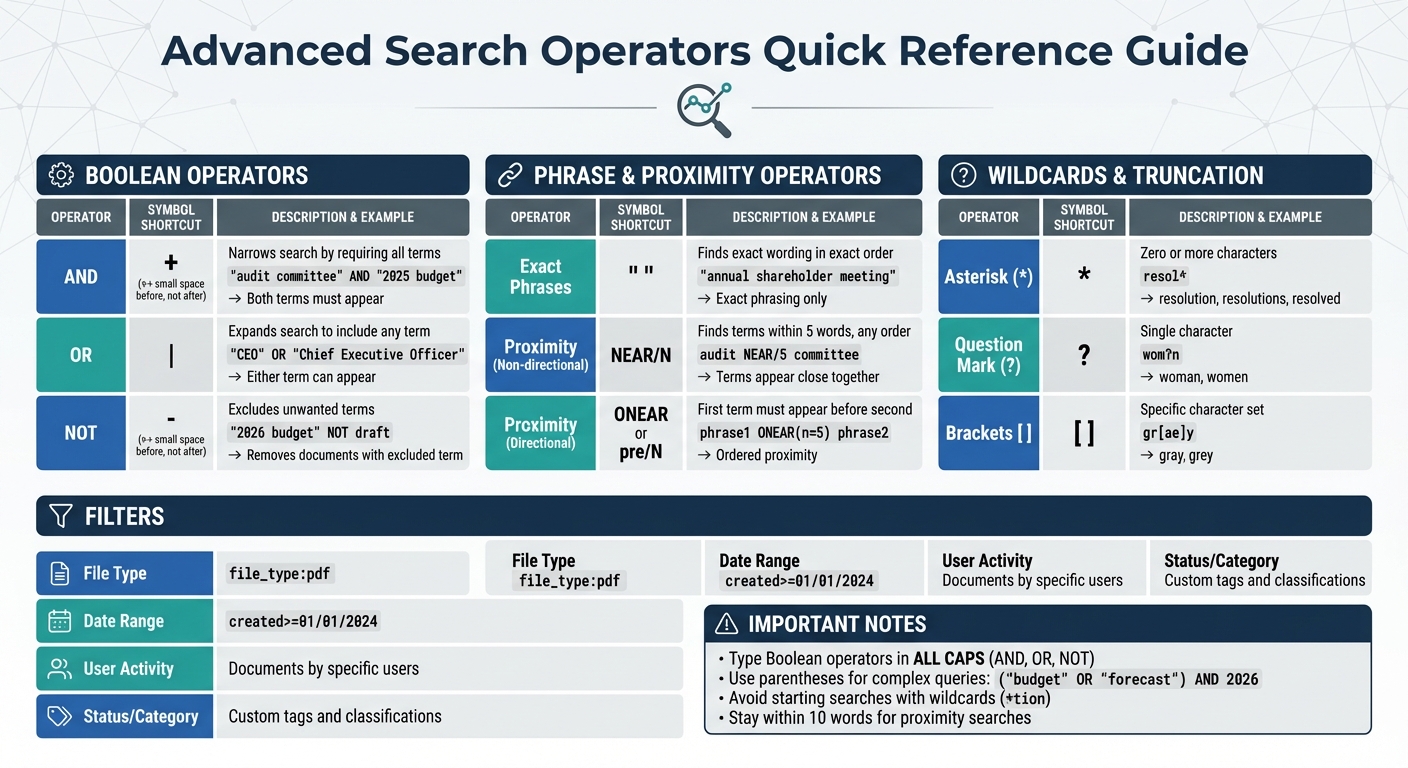
Advanced Search Operators Guide for Board Documents
Boolean operators can turn a basic search into a powerful tool for precision. These simple commands - AND, OR, and NOT - help refine your search by combining keywords, expanding results, or excluding irrelevant files.
Here’s how they work: AND narrows your search by ensuring all specified terms appear together in a document. OR widens the net, retrieving documents that include any of the listed terms. NOT removes unwanted terms, streamlining your results.
One important tip: many board management tools require these operators to be typed in ALL CAPS (e.g., AND, OR, NOT). Typing them in lowercase might cause the system to treat them as regular text. Some platforms also support symbols as shortcuts - + for AND, | for OR, and - for NOT. Just remember to leave a space before the symbol but not after it, like this: minutes -draft.
Below are practical examples for each operator.
How to Use AND, OR, and NOT
-
AND: If you need documents that cover multiple topics, this is your go-to. For instance, if you're preparing for a Q4 board meeting and need files on both the audit committee and the 2025 budget, search for
"audit committee" AND "2025 budget". This ensures the results include both terms. -
OR: This operator is ideal when dealing with synonyms or varied terminology. For example, board documents might use "CEO" in some cases and "Chief Executive Officer" in others. Searching
"CEO" OR "Chief Executive Officer"ensures you capture both. Similarly, using"minutes" OR "proceedings"can help account for different terms used across committees. -
NOT: Use this to exclude drafts, outdated files, or irrelevant documents. For example, searching for
"2026 budget" NOT draftensures you only see finalized budget documents. You can also combine it with other operators for more advanced filtering. For instance,("audit" OR "compliance") AND 2025 NOT preliminaryfocuses on finalized audit or compliance documents from 2025 while excluding early-stage reports.
For even more complex searches, parentheses help control the order of operations - just like in math. For example, searching ("budget" OR "forecast") AND 2026 tells the system to first consider either financial term and then filter for the year 2026. This ensures your results are both accurate and relevant.
Searching with Exact Phrases and Proximity Operators
Sometimes, Boolean operators just don’t cut it - especially when you need to pinpoint exact wording or locate terms that appear close to each other. That’s where quotation marks and proximity operators step in. These tools are perfect for zeroing in on board minutes, resolutions, or financial reports with precision. They work hand-in-hand with Boolean methods, setting the stage for even more advanced filtering techniques.
Finding Exact Phrases
To search for an exact phrase, simply enclose it in double quotes. This tells the system to look for that exact combination of words, in the same order, without any variations. For instance, typing "annual shareholder meeting" will only return documents containing that exact phrase, word for word.
This method is particularly handy for board documents because it overrides stemming. Stemming is when a system tries to include variations of a word (like “pricing” also pulling results for “priced” or “prices”). As BamSEC puts it:
"Exact Phrases also enforce the exact form of the terms for which you are searching. For example, a search for 'pricing' will match only pricing, not priced or prices".
Using this technique ensures that a search for "Interest Coverage Ratio" won’t flood your results with unrelated documents where those words appear separately or in different forms. Quotation marks are also essential when your search term includes Boolean operators. For example, searching for "risk and compliance" ensures the system treats it as a single phrase, rather than interpreting "and" as a connector between separate keywords.
Using Proximity Operators for Context
Proximity operators are your go-to tool when you know two terms are related but aren’t sure of their exact phrasing. These operators help you find words that appear near each other without requiring an exact match. The most common syntax involves using NEAR followed by a number that sets the maximum distance between the terms. For example:
audit NEAR/5 committeesearches for documents where "audit" and "committee" appear within five words of each other, regardless of order.
Different board management software platforms may use slightly different syntax. Some systems use tildes, like "audit committee"~5, while others rely on square brackets, such as \[2016 EBITDA\]~5. The number after the operator controls how many words can separate the terms. Staying within ten words usually delivers the most relevant results.
For searches sensitive to word order, directional operators like ONEAR or pre/N are the way to go. These ensure that the first term appears before the second, within the specified distance. Keep in mind that even common words like "the" or "and" are often counted toward the word limit in most systems.
| Search Type | Example | What It Finds |
|---|---|---|
| Exact Phrase | "annual shareholder meeting" | Documents with this precise phrase |
| Non-Directional Proximity | audit NEAR/5 committee | "audit" and "committee" within 5 words, any order |
| Directional Proximity | phrase1 ONEAR(n=5) phrase2 | Terms within 5 words, first term must appear first |
| Bracketed Proximity | [2016 EBITDA]~5 | Words within a custom distance |
Using Filters, Wildcards, and Truncation
Boost your efficiency and accuracy with wildcards and filters. These tools are perfect for board leaders who need to quickly locate crucial documents during high-pressure situations. Wildcards let you capture all variations of a term without manually listing each one, while filters help sift through extensive file collections to display only the most relevant results. For instance, if you're searching for board documents but aren't sure whether the term used was "resolution" or "resolutions", or if you need to focus solely on PDFs from a specific quarter, these techniques can save the day.
Wildcards and Truncation Techniques
Wildcards use symbols to stand in for unknown characters in search terms. The asterisk (*) is especially useful as it represents zero or more characters. For example, searching for resol* will return results like "resolution", "resolutions", and "resolved." This makes truncation a great tool for documents with varying terminology. Similarly, a search for merg* will include "merger", "mergers", and "merging."
The question mark (?) replaces a single character, which is handy for managing spelling differences. For instance, searching for wom?n will match both "woman" and "women." Additionally, brackets allow you to specify a set of characters. For example, using gr[ae]y will find both "gray" and "grey." As IBM eDiscovery Manager explains:
"Choosing the right search terms is the key to finding the information you need. The more precise results that you need, the more specific keywords you should use".
However, avoid starting a search with a wildcard. For example, queries like *tion can dramatically slow down the process because the system has to scan every word in the database. Instead, start with at least two or three characters before adding a wildcard. For instance, use motion* instead of *tion.
Once you've refined your search terms, filters can further narrow down the results.
Applying Filters to Narrow Results
Filters are a powerful way to cut through the noise. Most AI-powered board document management tools let you filter by file type (e.g., PDF, Word, Excel, PowerPoint), date range (such as "Last 30 days" or a custom range like 01/01/2024 to 12/31/2024), and user activity (e.g., documents created by, signed by, or shared with specific individuals). For example, if you're searching for a board resolution approved in March 2024, you could combine a file_type:pdf filter with a specific date range and the search term resol*.
Filters also allow you to refine results by document status or category. Some platforms even let you choose whether to search within the current folder or the entire system.
Combining Multiple Search Techniques
Advanced search gets its power from blending multiple techniques like Boolean logic, proximity operators, and filters. Instead of relying on just one, layering these methods can help you zero in on the exact documents you need. For example, say you're hunting for board minutes that mention both wind power and solar cells, but only those created after January 1, 2024. You could use a query like this:
("wind power" OR "solar cells") AND (title:innovations) AND created>=01/01/2024.
This layered approach filters out irrelevant results, saving you time.
Using parentheses to group terms is critical for ensuring the system interprets your query correctly. For instance, (Agenda OR Minutes) AND 2024 ensures the search engine understands the relationship between terms. Don’t forget to capitalize Boolean operators like AND, OR, and NOT. If you use lowercase, many platforms will treat them as regular words instead of logical commands.
Proximity operators can also be combined with Boolean logic to locate phrases where specific words appear near each other. For example:
[2016 EBITDA]~5 AND "Adjusted Earnings"
This finds documents where "2016" and "EBITDA" are within five words of each other, alongside the exact phrase "Adjusted Earnings." Similarly, you can refine searches with commands like tags:Responsive AND NOT tags:Privileged to include one category while excluding another.
| Scenario | Recommended Combination | Purpose |
|---|---|---|
| Privilege Review | tags:Responsive AND NOT tags:Privileged |
Focus on documents ready for production while excluding sensitive data. |
| Contextual Discovery | (Term A NEAR Term B) AND created>01/01/2024 |
Find topics discussed near each other within a specific timeframe. |
| File-Specific Search | keyword AND filetype:pptx AND title:Strategy |
Locate specific presentations with a keyword in the title. |
Most platforms also offer Advanced Search Builders, where dropdown menus let you choose field types and operators. These tools generate the correct syntax for you, which you can tweak further by adding parentheses or extra conditions. If you're testing several combinations, "Bulk Keyword Search" features can show hit counts before running a full query. This helps you refine your search and avoid wading through unnecessary results.
Fine-tuning your queries with these methods ensures you get precise results. And if you're ready to explore board management tools on BizBot, these search techniques will make finding the right tools even easier.
Finding Board Management Tools on BizBot

Once you've mastered advanced search techniques, the next logical step is finding a platform that supports them seamlessly - this is where BizBot comes in. BizBot acts as a robust directory for discovering board management tools tailored for handling board documents and shareholder registers, with a focus on enhancing board governance.
The tools featured on BizBot take search functionality to the next level. Many of them offer Deep Search capabilities, allowing you to search within the content of documents like Microsoft Word, Excel, PowerPoint, and PDFs. This means you can pinpoint specific terms or financial data across all your board materials without the hassle of opening each file individually.
Some platforms go even further with Systemwide Search. This feature lets you use a single keyword to pull up results from various sources - files, meeting minutes, voting records, agendas, and even conversations. Instead of conducting separate searches for each module, one query gives you a comprehensive view of where a term appears across your governance system.
BizBot also highlights tools that combine advanced search with filtering options. These features let you refine your results based on specific criteria, such as motions from a particular meeting or documents tagged with "compliance." By applying Boolean operators, proximity searches, and wildcards - techniques you've learned in this guide - you can ensure your searches are both precise and efficient.
When browsing BizBot's board management category, look for tools that provide a Document Naming Guide and a Tag Library. These systems enhance the accuracy of your searches by working in tandem with advanced search techniques. By selecting purpose-built tools through BizBot, you're creating an environment where the search methods you've mastered can truly shine.
Conclusion
Mastering advanced search techniques can make locating board documents faster and more efficient. Using Boolean operators helps refine your queries, cutting out irrelevant results. Proximity searches, which find terms within a specific context - often within eight words - are especially useful for navigating lengthy board packs. Meanwhile, tools like wildcards, truncation, and filters allow you to narrow results by date, file type, or even committee role.
These methods not only enhance search precision but also save valuable time. As BoardCloud highlights:
"This efficiency not only saves time but also ensures that board members can focus on strategic discussions rather than cumbersome searches."
With these tools, you can quickly locate specific clauses, historical financial data, or past meeting discussions - key resources for informed decision-making.
When paired with board management tools, these search strategies can be even more impactful. Combining Boolean logic, proximity searches, and filters ensures you get the most accurate results. For example, pairing quotation marks with wildcards, using relationship operators to define date ranges, and applying committee-based filters can make your searches laser-focused. Just remember to write Boolean operators in uppercase - most systems will otherwise treat them as ordinary search terms.
To maximize productivity, consider a board management platform that fully supports these techniques. BizBot, for instance, offers tools like Deep Search, which scans document content, and Systemwide Search, which covers files, minutes, voting records, and even conversations. By leveraging purpose-built solutions like those provided by BizBot, you can turn these search techniques into powerful aids for streamlining board governance processes.
FAQs
What’s the fastest way to narrow thousands of board files to a few results?
Advanced search tools can save you loads of time when sifting through thousands of board files. Look for options that allow keyword searches, file type filters, and location-based sorting. Tools with specific content filters and advanced features like Boolean operators are particularly helpful. These capabilities let you narrow down your results, helping you find the exact documents, messages, or meeting records you need - often in just seconds.
Why do my searches fail when I type AND/OR/NOT in lowercase?
Searches often fail because Boolean operators - like AND, OR, and NOT - are case-sensitive. These words must be typed in uppercase to work as intended. If you use lowercase (e.g., "and", "or", "not"), they won't be recognized as operators, and your search might not yield the results you expect.
How can I find key terms inside PDFs and slide decks without opening them?
Finding specific terms in PDFs or slide decks can save a lot of time. Here’s how you can do it:
- For PDFs: Use system tools like Spotlight on Mac or Content Indexing on Windows. These tools allow you to search within the contents of PDF files directly from your desktop. If you’re using Adobe Acrobat, its Advanced Search feature enables you to search across multiple PDFs at once, making it even more efficient.
- For Slide Decks: Many board management tools come with built-in search features. Simply type in key phrases, and the tool will locate the slides or presentations containing those terms.
These methods streamline your search process, letting you find what you need without opening each file individually.