A stolen password should not be enough to get into your project workspace. In business administration tools, the safest setup is simple: use MFA for every user, require stronger methods for admins and high-risk accounts, keep recovery locked down, and watch sign-in logs for abuse. That matters because credential stuffing caused 34% of account-takeover incidents in 2024, and the average breach cost hit $4.4 million in 2025.
If I had to boil the whole guide down, I’d say this:
- Turn on MFA for all users, not just admins
- Use hardware keys or passkeys for admins, execs, and sensitive projects
- Use authenticator apps as the default for most staff
- Keep SMS and email codes as backup only
- Set MFA rules in your IdP if you use SSO
- Roll it out in phases so people don’t get locked out mid-project
- Give each user at least two methods plus single-use backup codes
- Lock down help desk resets and account recovery
- Review logs, failed sign-ins, push spam, new devices, and odd locations
Here’s the plain-English version: MFA helps stop stolen-password attacks, but not every MFA method gives the same level of protection. TOTP and push are common, but phishing can still beat them. Passkeys and FIDO2 security keys do a much better job for high-risk accounts. And if recovery is weak, the whole setup can fall apart fast.
Quick comparison
| Method | Security | Ease of use | Main risk | Best fit |
|---|---|---|---|---|
| SMS/email codes | Low to medium | High | SIM swaps, interception, phishing | Backup only |
| Authenticator app (TOTP) | Medium | Medium | Real-time phishing | Most staff |
| Push approvals | Medium | High | Prompt spam, accidental approval | Frequent sign-ins |
| Hardware security keys | High | Medium | User setup friction | Admins, execs |
| Passkeys | High | High | Device and account recovery planning | Modern sign-in flows |
| Biometrics | Medium to high | High | Depends on device controls | Managed devices |
If you’re setting policy, the goal is not to add more login pain. It’s to match the MFA method to the account risk, then roll it out in a way your team can live with.
How to deploy Multi Factor Authentication MFA and avoid the pitfalls!
sbb-itb-d1a6c90
MFA Methods Used in Cloud PM Platforms
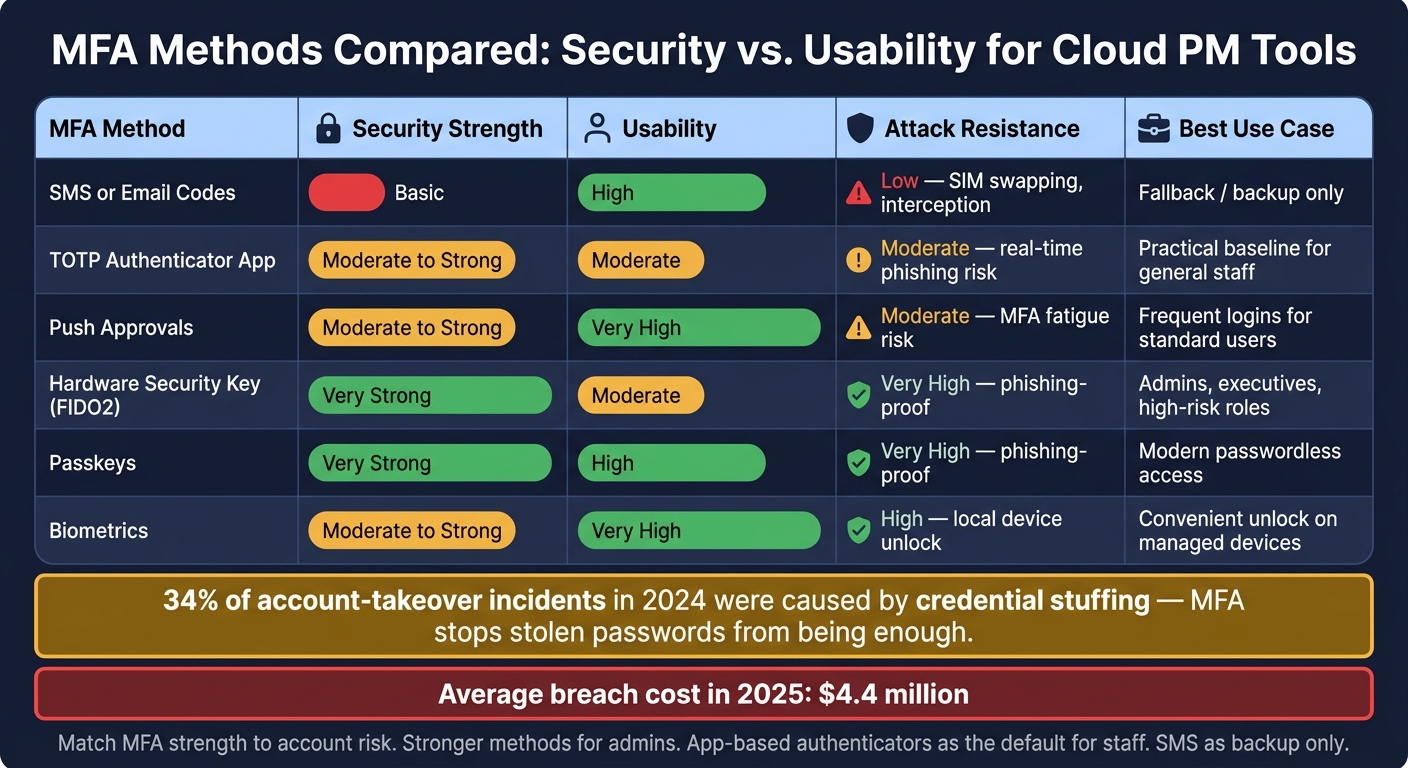
MFA Methods Compared: Security vs. Usability for Cloud PM Tools
Before you set an MFA policy, it helps to sort out three terms that often get lumped together: SFA, 2FA, and MFA.
SFA uses one factor. 2FA uses exactly two. MFA uses two or more factors from different categories. So a password plus a PIN is not MFA, because both come from the same factor type. In project management tools, that choice shapes every login flow, whether it's for admins, full-time staff, or outside contractors.
The Three Authentication Factors Explained
Every MFA method fits into one of three buckets:
- Something you know: passwords, PINs
- Something you have: authenticator apps, hardware keys, SMS codes
- Something you are: fingerprint, Face ID
In a cloud PM platform, a common login flow looks like this: a user enters a password, then the system asks for a TOTP code from an authenticator app. That second step comes from a different factor category, which is what makes it MFA.
In these tools, the right method depends on a few day-to-day things: the user's role, how tightly the device is managed, and how often they need to sign in.
MFA Methods Compared: Security vs. Usability
The MFA method you pick changes both account protection and day-to-day hassle.
| MFA Method | Security Strength | Usability | Attack Resistance | Best Use Case |
|---|---|---|---|---|
| SMS or email codes | Basic | High | Low - vulnerable to SIM swapping and interception | Fallback for users without smartphones |
| TOTP Authenticator App | Moderate to Strong | Moderate | Moderate - vulnerable to real-time phishing | Practical baseline for general team members |
| Push Approvals | Moderate to Strong | Very High | Moderate - vulnerable to MFA fatigue | Frequent logins for standard users |
| Hardware Security Key (FIDO2) | Very Strong | Moderate | Very High - phishing-proof | Admins, executives, and high-risk roles |
| Passkeys | Very Strong | High | Very High - phishing-proof | Modern, passwordless access |
| Biometrics | Moderate to Strong | Very High | High - usually a local unlock for a trusted device | Convenient unlock for managed devices |
For most teams, TOTP apps are the practical starting point. They strike a decent balance between protection and ease of use.
SMS codes are still better than no second step at all, but they work best as a backup. If someone manages sensitive project data or has admin access, hardware keys give those accounts the strongest shield.
Attack Scenarios Where MFA Makes a Difference
MFA does a solid job against credential stuffing and password spraying, since a stolen password by itself won't get an attacker in.
Phishing is tougher. TOTP codes and SMS codes can still be stolen through real-time phishing kits that pass login details along as the user types them. Hardware keys and passkeys shut down that trick because they are cryptographically tied to the actual domain. A fake sign-in page can't use them.
Push approvals need care too. Without number matching, users can get hit with repeated prompts and approve one by mistake just to make the alerts stop. That's the classic MFA fatigue problem.
The practical takeaway is simple: match the MFA method to the level of risk. Give stronger options to the people with the most access and the most sensitive project data.
How to Build an MFA Policy for Cloud Project Management
The next step is putting your MFA rules in writing. This is where MFA stops being “something we turned on” and becomes a control people can follow and auditors can check.
Your policy should spell out who must use MFA, which methods are allowed, and how exceptions are handled. Once you’ve chosen your methods, map them to the right people and the right situations.
Pick MFA Methods Based on Risk, Devices, and Admin Effort
Choose MFA based on role risk, device type, ownership model, and IT overhead. In plain English: the right method depends on who the user is, what device they use, and how much work IT can support without things getting messy.
For managed devices, stronger methods make sense for high-risk roles. In BYOD setups, app-based authenticators are usually the practical starting point. SMS should be kept as a backup only.
It also helps to centralize enforcement in an IdP such as Microsoft Entra ID, Okta, or Google Workspace. That keeps rules and logs in one place, which makes life easier during reviews and incident checks.
Use those inputs to build separate rules for:
- Admins
- Staff
- Contractors
- Guest access
Apply Stronger MFA to Admins, Sensitive Projects, and Risky Sign-Ins
Use stricter MFA for privileged roles and risky sign-ins. Standard users can use lower-friction methods where that makes sense.
Privileged accounts need the strongest MFA because they can control other accounts. A simple split often works well: require hardware keys or passkeys for admins, authenticator apps with number matching for staff, and MFA on every sign-in for contractors and other third parties.
You should also trigger step-up MFA during the session for actions and signals that carry more risk, such as exports, permission changes, password resets, new devices, unfamiliar IPs, and impossible travel. For high-risk projects, shorter MFA session windows may make sense for privileged users.
Write these rules down. If enforcement, exceptions, and account recovery are handled differently each time, the policy starts to fall apart.
Document MFA Rules for Audits and Internal Reviews
If it is not written down, it is not enforceable. For U.S. organizations, written documentation is what turns MFA from a setting into a control.
Your policy document should cover these core areas:
| Policy Component | What to Include | Audit Evidence Needed |
|---|---|---|
| Scope | Which users are covered, including staff, contractors, and admins | User lists and group membership logs |
| Method Matrix | Allowed methods mapped to risk levels; discouraged fallbacks noted | Identity provider configuration screenshots |
| Exception Log | Each bypass with a documented owner, business reason, and expiration date | Signed exception records |
| Recovery Flow | Procedures for lost devices and account resets | Help desk tickets and identity verification logs |
| Review Cycle | Quarterly review schedule with assigned owners | Signed audit reports and remediation logs |
Every exception needs an owner, a reason, and an expiration date. That’s non-negotiable. Quarterly control reviews should look for stale exceptions, inactive accounts, and any drift in privileged role assignments since the last review.
Recovery procedures belong in the same document too. This part often gets less attention than it should. If the help desk can reset MFA through a weak verification process, the rest of the policy loses much of its force.
"If privileged access can be recovered through weak SMS or easily abused help desk steps, the MFA program is only partially effective." - ITU Online Editorial Team
Align the policy with NIST and CISA guidance on phishing-resistant authentication for high-risk roles. That gives your team a clear standard for rollout, recovery, and audit review, and it helps keep decisions consistent across the board.
How to Roll Out MFA Without Disrupting Project Work
Once your MFA rules are set, don’t flip the switch for everyone at once. Roll enforcement out in stages so people have time to enroll and your team doesn’t get hit with lockouts or a flood of support tickets. A phased rollout lets users get set up without throwing active projects off track.
Set Up Your Environment Before Enforcing MFA
Before you enforce anything, map out every cloud project management tool workspace, connected app, and user group. The goal is simple: keep project access working while new controls go live. You’ll also want to confirm how each person signs in. Some users log in directly through the tool. Others come in through an SSO provider like Microsoft Entra ID, Okta, or Google Workspace. Those two paths need different setup.
It also helps to check password and account recovery settings early. If recovery is weak, MFA can be undercut before it even starts. And instead of setting one company-wide deadline, set enrollment deadlines by team or role. A 7–14 day grace period for current users usually gives people enough time to add their devices without getting locked out in the middle of a sprint.
Once you’ve mapped those access paths, enforce MFA by group and role.
Configure Native MFA, SSO MFA, and Backup Access
If your PM tools are tied to an IdP through SSO, set MFA at the IdP level. That way, one policy applies across all connected apps. For tools that don’t use an IdP, turn on MFA in the app’s admin settings and limit which MFA methods users can choose.
For admins and other high-risk accounts, use phishing-resistant MFA methods during enforcement. For most staff, app-based authenticators are the practical default. Each user should register at least two MFA methods, such as an authenticator app plus backup codes, so a lost phone doesn’t stop work cold. Pre-generate single-use backup codes during enrollment.
You should also create at least one emergency break-glass account. Keep it isolated, monitor it closely, and exclude it from standard conditional access policies. It should NEVER be used for normal day-to-day work.
After setup, the next step is enrollment, offboarding, and watching activity.
Manage Enrollment, Offboarding, Logs, and Alerts
A simple rollout schedule works well here:
- Use the first two weeks to pilot with IT or a small test group and fix issues.
- Roll out by department in weeks three and four.
- Enforce MFA for high-risk roles in week five.
- Finish full organization-wide enforcement by week six.
Give users enrollment guides with screenshots, lists of supported devices, and plain recovery steps. That can cut help desk volume in a big way. And when someone leaves the company, revoke their MFA access right away through the IdP so one action removes access across all connected tools at once.
Treat MFA logs like live security data, not background noise. Watch for spikes in failed attempts, sign-ins from unfamiliar locations, and repeated push notifications a user didn’t trigger. Those repeated prompts can be a sign of MFA fatigue. Turn on number matching for push prompts to reduce accidental approvals.
Optimization, Recovery, and Key Takeaways
Cut MFA Fatigue Without Weakening Security
After rollout, the job changes. Now it's about cutting prompt fatigue while keeping security tight.
Too many MFA prompts can backfire. People get used to them and start approving without thinking. That's exactly the kind of behavior seen in the Uber breach. The answer isn't to slash prompts across the board. It's to show prompts when risk is higher.
Adaptive authentication does this by challenging suspicious sign-ins only, such as logins from new devices, odd locations, or impossible travel. For day-to-day access, remembered devices can reduce friction. But for password changes and admin access, you should check identity again. For admins and finance leads, move to passkeys or hardware keys.
Handle Lockouts, Lost Devices, and Bypass Incidents
Once users start tuning out prompts, recovery can become the weak spot.
If you suspect an MFA bypass, act right away. Lock the account, revoke sessions, and rotate tokens and passwords at once. Don't sit around waiting for proof. Respond first, then dig into the details.
Pull audit logs immediately. Review IPs, user agents, timestamps, and the MFA method used. If the bypass is confirmed, force full MFA re-enrollment and invalidate the old MFA methods.
Help desk resets need tight controls too. They should never skip documented identity checks. Require documented identity verification before access is restored. And if you issue backup codes during enrollment, make them single-use and tell users to store them offline, not in a shared doc or an email thread.
Conclusion: Core MFA Practices Every Team Should Follow
After fatigue and recovery are under control, keep reviewing MFA policy on a regular basis. Match MFA strength to the user's role and level of risk, keep recovery controls tight, and review logs often. Those basics still matter as your cloud PM setup grows and your tool stack shifts.
FAQs
What MFA method should we require for each user type?
Choose MFA based on user role and risk level.
Privileged or high-risk users should use hardware security keys or FIDO2/WebAuthn. They offer stronger protection against phishing, which matters most for accounts with broad access or admin rights.
For regular users, authenticator apps (TOTP) are a solid baseline. They’re easier to roll out and still give much better protection than passwords alone.
For frontline or mobile workers, push notifications or biometrics may fit better. The best option often comes down to how and where people work day to day.
Treat SMS as a fallback only. It should not be the main MFA method for high-security accounts.
MFA should be enforced for all users. Fallback options should stay limited and locked down so they don’t become the weak link.
How do we roll out MFA without locking users out?
Use a phased rollout backed by clear communication and hands-on support. Start by mapping accounts and risk levels, pick approved MFA methods, and test everything with a small pilot group so you can spot problems before the rollout gets bigger.
Turn on MFA for high-risk accounts first, then expand in stages. Give people step-by-step enrollment help, clear support for device changes, and secure fallback options such as recovery codes and documented recovery procedures.
What should we do if a user loses their MFA device?
Have an administrator deactivate the lost or broken device. That lets the user sign in again, remove the old device from their account, and set up a new MFA device.
If the user can't sign in with MFA, they should contact an administrator first. If the device was lost or stolen, it's also a good idea to change the account password. Adding a backup MFA device can help prevent the same headache later.