If you run a small business, your Wi-Fi needs more than a password. In the last 12 months, 56% of U.S. small businesses faced a cyber attack, and wireless weak spots like rogue access points, fake hotspots, flat guest networks, and old router settings can make that risk worse.
I’d sum it up like this: if you want to cut wireless risk, you need to lock down Wi-Fi settings, split devices into separate network segments, watch for strange wireless activity, and review alerts on a set schedule. That includes moving to WPA3, changing default admin passwords, turning off weak setup options like WPS, separating guest, staff, IoT, and POS traffic, and using WIDS or WIPS to spot odd SSIDs, unknown devices, and deauth attacks.
Here’s the short version:
- Main risks: rogue access points, evil twin hotspots, weak encryption, poor guest Wi-Fi separation, and devices that should not be on the network
- Big exposure: IoT devices are tied to 30% of breaches
- Why it matters: 43% of cyberattacks target small businesses, and the average breach costs about $200,000
- What detection tools do: watch the airwaves for duplicate SSIDs, strange MAC addresses, weak encryption, personal hotspots, and forced disconnect attempts
- Best first steps: use WPA3, change factory passwords, update firmware, split networks with VLANs, and assign one person to review alerts
- Setup choices: basic hardening, cloud-monitored WIDS/WIPS, or a managed service
Wireless Intrusion Detection & Prevention Systems (WIDS/WIPS): Securing Wireless Networks
sbb-itb-d1a6c90
Quick Comparison
| Area | What to watch for | What I’d do first |
|---|---|---|
| Wi-Fi hardware and settings | Default passwords, WPS, old encryption | Change admin login, disable WPS, move to WPA3 |
| Network layout | Guests, staff, IoT, and POS on one network | Split traffic into separate VLANs |
| Wireless threats | Rogue APs, evil twins, odd devices | Turn on WIDS alerts and keep a device list |
| Team process | No owner for alerts, no review schedule | Give one person ownership and check weekly |
| Budget level | Too little visibility or too many tools | Pick basic, monitored, or managed based on risk and time |
The main point is simple: small businesses do not need a huge security stack, but they do need clear wireless rules, clean network separation, and a way to spot trouble before it turns into downtime or stolen data.
Wireless security risks small businesses face
That leaves three common wireless risks: rogue gear, fake hotspots, and weak Wi‑Fi settings. In practice, these problems usually show up in three areas: device types, router settings, and network segmentation.
Rogue access points, evil twin hotspots, and devices that do not belong
A rogue access point often appears when an employee plugs in a personal Wi‑Fi booster or home router to fix a dead zone. It may seem harmless, but it creates a serious gap. That device can bypass your firewall and network access controls, leaving an unmonitored backdoor into the network.
An evil twin hotspot works differently. It is a standalone device that broadcasts the same network name as your business Wi‑Fi. Attackers use a stronger signal or forced disconnects to push devices onto it. Once that happens, they can intercept traffic and steal credentials.
Then there are devices that simply should not be there. Personal laptops, smartphones, and unapproved IoT gear like smart thermostats or cameras can end up on the main business Wi‑Fi. That matters because IoT devices account for 30% of breaches.
| Threat | How it connects | Impact | How it's detected |
|---|---|---|---|
| Rogue Access Point | Physically plugged into the network | Bypasses firewall | Matching wired and wireless device identities |
| Evil Twin Hotspot | Standalone; not connected to the network | Intercepts traffic and credentials | Spotting duplicate network names and signal patterns |
The next weak spot is the Wi‑Fi setup itself.
Weak encryption, default passwords, and poor guest Wi-Fi separation
Default router credentials are still a common mistake. If someone can reach the admin panel, those defaults can let them take over the network. WPS makes the problem worse because its PIN can be brute-forced quickly.
Encryption is just as important. Many small businesses still use WPA2, which has been crackable since 2017 through KRACK attacks. WPA3 is the current secure standard, so access points that do not support it should be replaced.
Guest Wi‑Fi separation also breaks down more often than many owners think. Some small businesses keep employees, guests, and IoT devices on the same flat network. That means a visitor’s laptop, a hacked smart camera, and a point-of-sale system can all sit side by side. Once an attacker gets in, that setup gives them a path for lateral movement.
Why small businesses are easier targets
These gaps make small businesses easier to target. Small businesses are frequent targets: 43% of cyberattacks target them, and the average breach costs about $200,000.
When you combine limited oversight with weak controls, wireless risk stops looking like a minor IT issue and starts looking like an open door.
How wireless threat detection addresses these problems
Wireless threat detection closes a visibility gap that many teams miss. It watches nearby Wi‑Fi activity for rogue access points, evil twins, and unknown devices that firewalls and endpoint tools simply can't see. That matters because a threat doesn't need to touch your wired network in an obvious way to cause trouble.
The next step is understanding what these tools watch for in practice.
What wireless threat detection tools monitor
These tools scan nearby wireless signals, not just traffic on your own network. They flag unknown MAC addresses, duplicate SSIDs, forced disconnect attacks (deauth attacks), personal hotspots, ad-hoc networks, and weak encryption.
A rogue access point may appear as an unrecognized MAC address on the wired infrastructure. An evil twin can show up as a duplicate SSID with signal traits that don't line up with your approved hardware. They also flag personal hotspots, ad-hoc networks, and weak encryption on access points.
Once you know what gets flagged, the next decision is simple: do you want alerts only, or do you want the system to step in and block?
WIDS vs. WIPS: what each one does for a small business network
WIDS alerts on suspicious wireless activity. WIPS alerts and blocks. For many small businesses, WIDS is the starting point because it adds visibility without the false-positive risk that can come with active blocking.
| Feature | WIDS (Detection) | WIPS (Prevention) |
|---|---|---|
| What it does | Alerts on suspicious activity | Blocks or disconnects threats |
| Action level | Passive - no interference | Active - disrupts connections |
| False positive risk | Low | Higher if not properly tuned |
| Best fit | General office, guest Wi-Fi areas | Server rooms, PCI-compliant zones |
| Complexity | Easier to deploy and manage | Requires careful tuning |
How wireless detection works alongside firewalls, endpoint security, and VPNs
Wireless threat detection works with firewalls, VPNs, and endpoint security by watching the wireless layer those tools don't cover. It's not a replacement. It's another set of eyes on a part of the network that often gets ignored.
For tighter containment, wireless detection works best with access control. When paired with NAC, it can quarantine the wired port behind a rogue access point before the threat spreads. That helps close the blind spot left open by wired-only tools.
A practical wireless threat detection plan for a small network
Knowing what to watch is only part of the work. You also need a setup that makes the network harder to abuse and easier to monitor. Once you know the main risks, the next move is simple: lock down the basics, then put a light response process in place. Start with secure settings. Then add monitoring and a regular review routine.
Start with secure Wi-Fi settings and network segmentation
Use WPA3 if your hardware supports it. For user authentication, use WPA2-Enterprise or WPA3-Enterprise. Change factory-default admin passwords, and turn on automatic firmware updates.
Then split the network into VLANs. At a minimum, create separate networks for company devices, guest users, and IoT gear like cameras, printers, and thermostats. Payment terminals need their own isolated segment. They should never share a network with guest Wi-Fi. On the guest network, enable client isolation so visitors can't reach internal systems. Business-grade access points with VLAN support and centralized management make this much easier.
| Network Segment | Who Uses It | Key Control |
|---|---|---|
| Corporate | Company laptops, servers, sensitive data | WPA3/802.1X |
| Guest | Visitor phones, personal devices | Client isolation, internet-only |
| IoT | Cameras, thermostats, printers | No access to internal VLAN |
| Payment (POS) | Card terminals, registers | Fully isolated from Guest and IoT |
When the network is split up this way, detection tools have an easier job. Alerts come with less noise, and it's much faster to see what an event means.
Set up monitoring, alerts, and response rules
Once the network is separated, decide what should count as suspicious and who owns the response. Use a centralized dashboard from a business-grade system to keep a live device list and watch for rogue access points and odd traffic. Don't turn on alerts for everything all at once. That gets noisy fast.
Instead, focus on a few high-signal events:
- New SSIDs
- Unusual signal strength
- Failed admin logins
Give one person clear ownership of alerts. Then write a short response playbook for rogue APs, unknown devices, and certificate mismatches. If your platform allows it, set up automatic quarantine for devices that don't match known certificates.
Train staff and review wireless activity on a regular schedule
Controls work best when people follow the same rules every time. A one-page wireless policy should spell out approved devices, password or MFA rules, offboarding steps, and a ban on personal hotspots. If you still use shared Wi-Fi credentials anywhere, rotate them at least every 90 days.
For day-to-day oversight, check the dashboard weekly for unknown devices or odd traffic. Every quarter, review logs, device lists, firmware status, and documentation. That rhythm helps keep wireless activity in plain sight.
Choosing the right level of investment and next steps
Small Business Wireless Security: Basic vs. Monitored vs. Managed
Compare three wireless security setups: basic, monitored, and managed
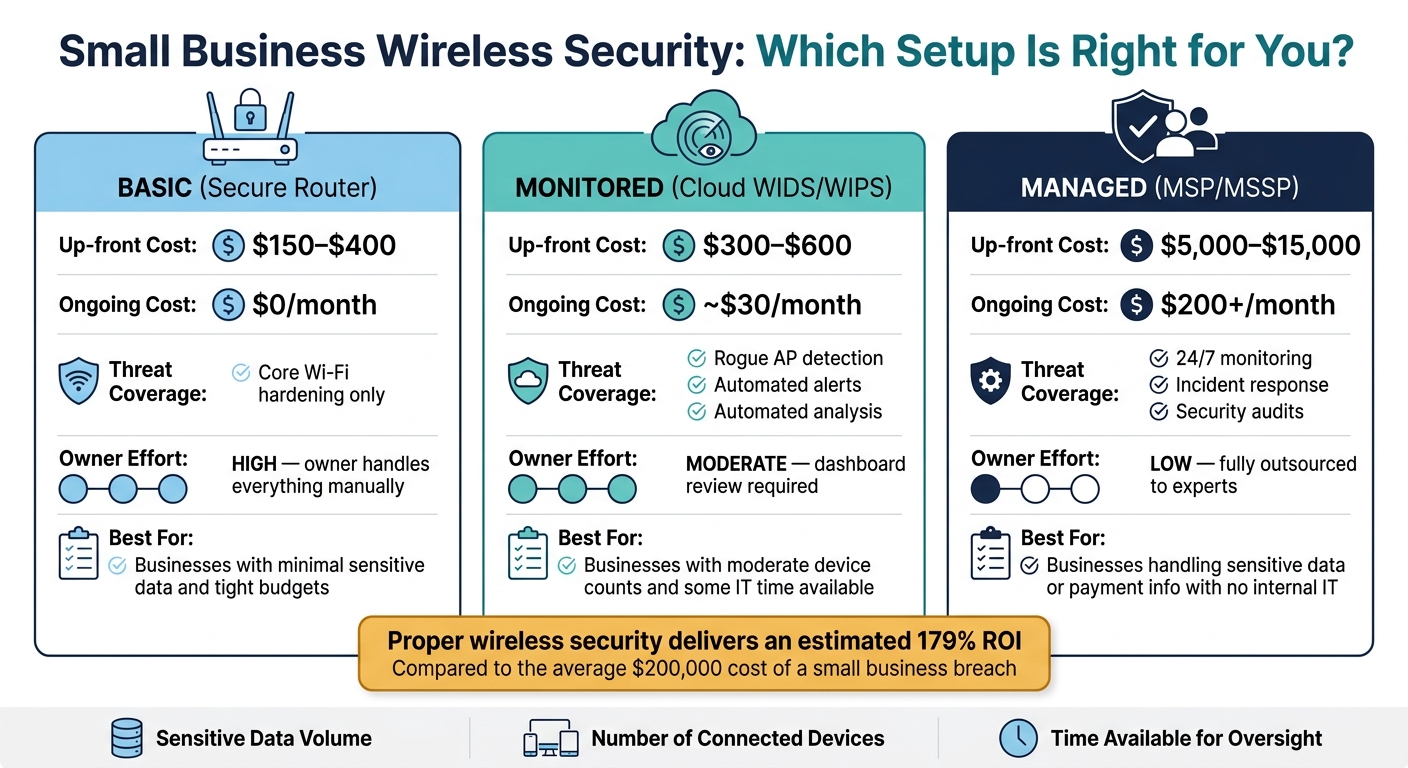
Once detection and response are in place, the next call is simple: how much security can your team keep up with week after week? Small businesses don’t all need the same wireless setup. The best fit comes down to three things: how much sensitive data you handle, how many devices connect to your network, and how much time you can spare for oversight.
Here are three practical paths, from a simple setup to a fully outsourced one:
| Setup | Up-front Cost (USD) | Ongoing Cost (USD) | Threat Coverage | Owner Effort |
|---|---|---|---|---|
| Basic (Secure Router) | $150 – $400 | $0 | Core Wi-Fi hardening | High - owner handles everything manually |
| Monitored (Cloud WIDS/WIPS) | $300 – $600 | About $30/mo | Rogue AP detection, automated alerts, automated analysis | Moderate - dashboard review required |
| Managed (MSP/MSSP) | $5,000 – $15,000 | $200+/mo | 24/7 monitoring, incident response, security audits | Low - outsourced to experts |
Even the higher-cost options can be easier to justify when you compare them to the average small-business breach. When avoided costs are factored in, proper wireless security is estimated to deliver a 179% ROI.
Use better operational visibility to support security spending
Recurring security costs can drift upward without much notice. A cloud-managed WIDS/WIPS license here, a DNS filtering service there, then an MSP contract on top of it - before long, you’re paying several monthly fees that are easy to lose track of.
That’s why clear visibility matters. When you can see each recurring charge in one place, it becomes much easier to defend the spend, cut what no longer pulls its weight, and keep your budget under control.
BizBot helps small business owners track recurring expenses in one place, making wireless security subscriptions easier to manage.
Conclusion: core steps that reduce wireless risk
After you choose a setup, the focus shifts from buying tools to sticking with the routine. Wireless security works best when it becomes part of normal operations: harden Wi-Fi, segment devices, monitor alerts, and review activity on a regular basis.
FAQs
Do I need WIDS or WIPS?
It comes down to one thing: do you need visibility or active defense?
A WIDS watches wireless traffic in the background and alerts your team when it spots rogue access points or suspicious activity.
A WIPS takes the next step. It can automatically block or disconnect unauthorized devices and threats in real time.
Use WIDS if your main goal is monitoring. Go with WIPS if you need immediate, automated protection.
Can I secure Wi-Fi without replacing all my hardware?
Yes. You can tighten security without swapping out all your hardware. The main move is to focus on configuration and segmentation.
Start with the basics: disable WPS, use WPA3 or WPA2-AES, keep firmware up to date, and set up a guest network so visitors stay separate from internal systems.
It also helps to check what your current hardware can actually do. Some older ISP-provided equipment doesn't support network segmentation or firewall policies well enough for a professional environment.
How often should I review wireless alerts?
Review wireless alerts on a regular basis to help keep your network secure. Real-time alerts can flag suspicious activity as it happens, but that shouldn't be your only check. It's smart to review your connected device list and network logs at least once a month.
See a device you don't recognize or traffic that looks off? Check it right away.